
Logging in
- Insert a sim into the mifi, replace the battery and then connect via Wifi.
- Once connected to the wifi, open a web browser and connect to the below URL to gain access to the web dashboard: http://tplinkmifi.net
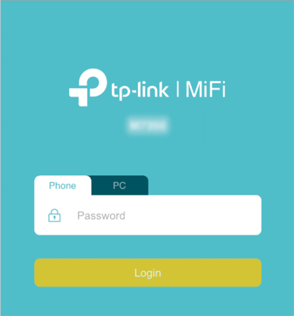
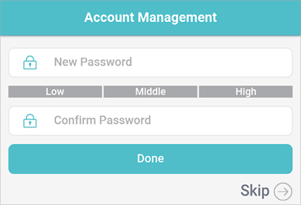
The default password should be admin, however, you may be prompted to change the password for security reasons. If the password isn’t the default, refer to the steps for a factory reset.
Setting the APN
- Once you’re on the dashboard, you should be given a variety of options available to you.
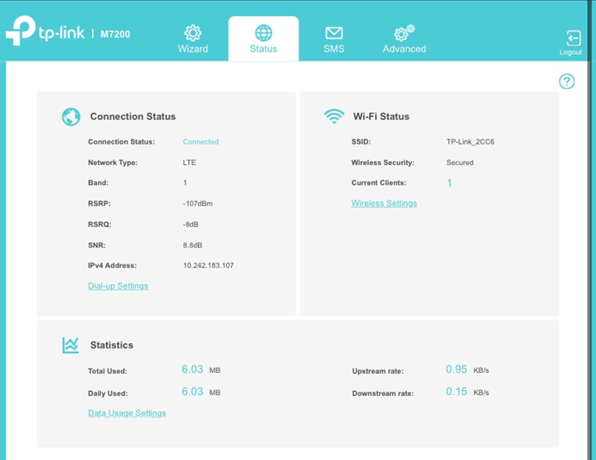
- Navigate to the advanced settings and expand the “Dial-Up” tab, then select “Dial-Up Settings”.
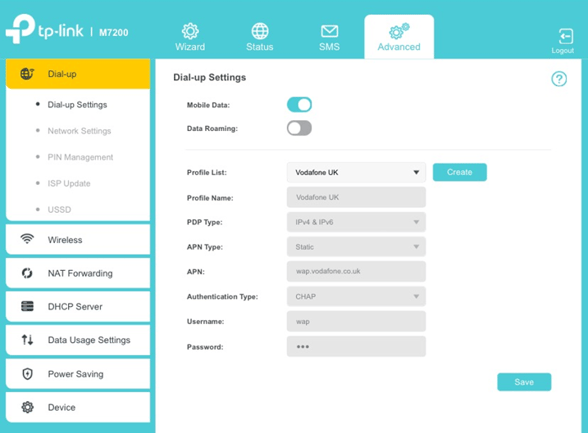
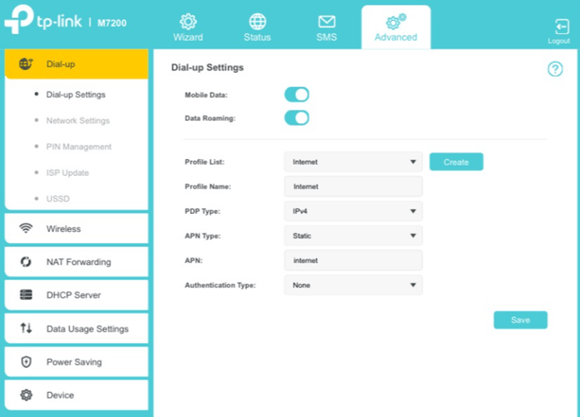
This menu will allow you to enable or disable the data connection, as well as enable or disable data roaming.
If the APN for the sim doesn’t auto-populate, you can create a new APN by clicking on the create button
- After clicking on create, you will be brought to the APN creation page.
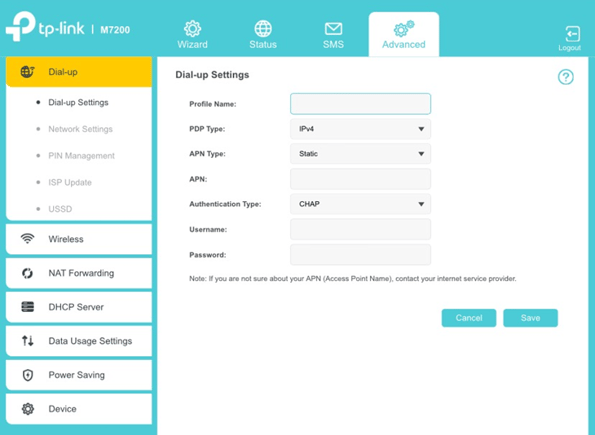
As an example, the below is an alternate Vodafone UK APN, however, the exact APN will vary, depending on which sim you are using.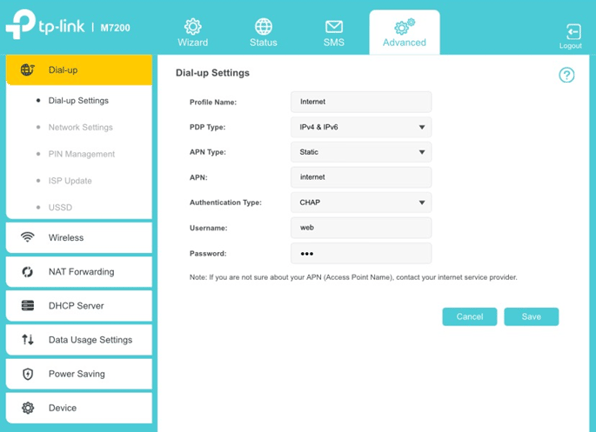
Performing a manual network Search
- If you want to perform a manual network search, navigate to advanced settings, expand the Dial-Up tab, and select network settings.
Under network search there will be an option for Network search with a drop down.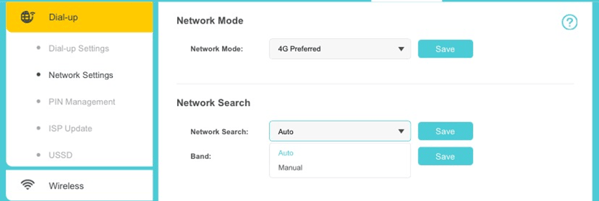
- Select manual and then click search.
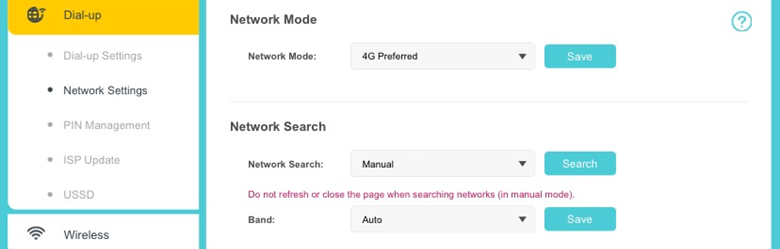
- After searching for a moment, a network list will appear, with which you will be able to select your preferred network.
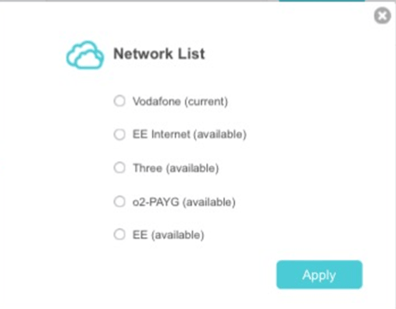 After selecting your preferred network, the page will register for a few moments, before going back to normal.
Enable Data Roaming
- To Enable Data roaming, you need to navigate to Advanced Settings, expand the Dial-Up tab, and select Dial-Up Settings.
- From that point, you can enable and disable mobile data, as well as enable or disable Data roaming as necessary.
Tracking Data Usage
- If you would like to track your data usage on your TP-Link Mifi, this can also be done from the dashboard, this can be done by navigating to the advanced settings, and selecting the data usage tab.
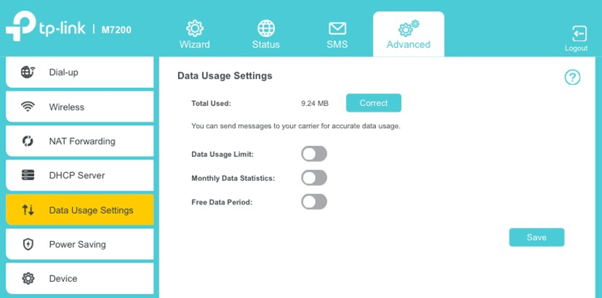
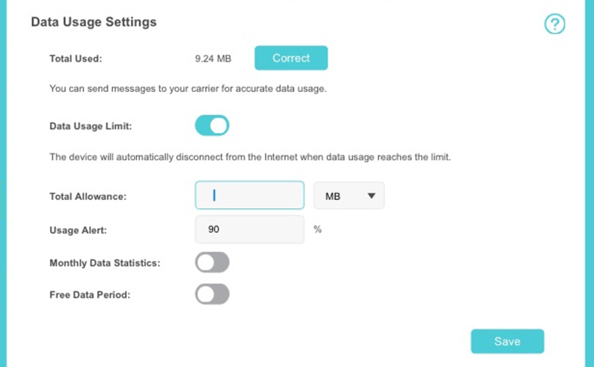
- There are a few tools that you can set up and use to make tracking the data usage easier. The first and foremost being setting up a data usage limit. Where you can set up a data allowance, and then receive an alert when that amount of data has been consumed.
Factory Reset
Physical Hard Reset
- The first method is to reset the device using the reset button.
First, ensure the device is turned on. If the device isn’t, press the power button and wait for it to power on. - Open the back cover, and use a pin to press and hold the reset hole until you see the device’s three LEDs turning off for about 3 seconds. The LEDs should then power back on for about 5 seconds, flash once, and then stay on for another 10 seconds, before booting back up again.
If the above behaviours don’t occur, please try the steps again.
Reset via the Admin interface
- Follow the prior steps to log-in to the device’s web interface.
- Navigate to Advanced > Device > Factory Defaults and then click restore.
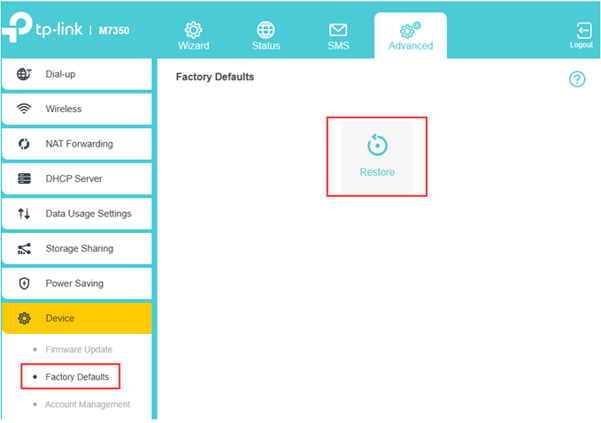
The device will then initiate the factory reset procedure.